NOTICE
This version is outdated. It is recommended to view the latest Xdows Security 4.1 version.
Creating Plugin Packages
Compression Software
In theory, you can use almost any software that supports ZIP compression.
However, it is recommended to use the open-source software 7-Zip because of its efficient compression algorithm and wide compatibility.
This article uses NanaZip, which is based on 7-Zip.
Other software may have different interfaces, but the steps are generally similar.
Preparing Plugin Content
Before compressing, ensure that the plugin directory structure is correct. A standard plugin directory structure is as follows:
PluginName/
├── Data/
│   └── ...
└── Files/
    ├── Main.dll
    └── ...
Make sure the Main.dll file is located in the Files folder, and all necessary data files are stored in the Data folder.
Compressing the Plugin Directory
Right-click on the plugin directory and select
Add to archive.In the pop-up window, choose the following options:
- Compression format: zip
- Compression level: Level 1 (fast compression, suitable for plugin packages)
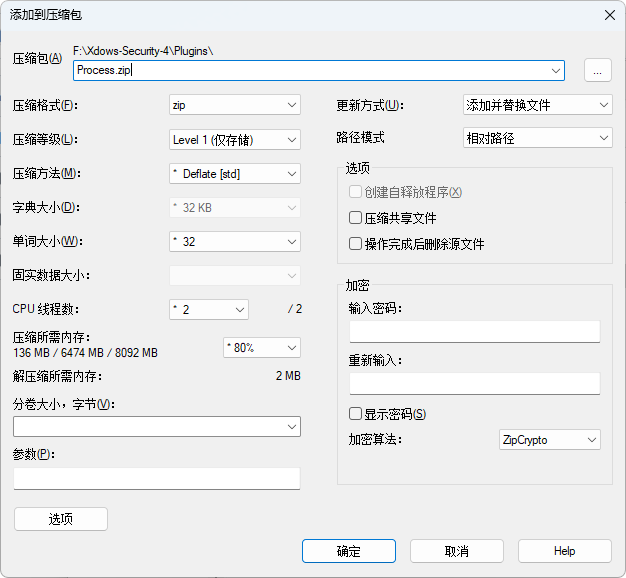
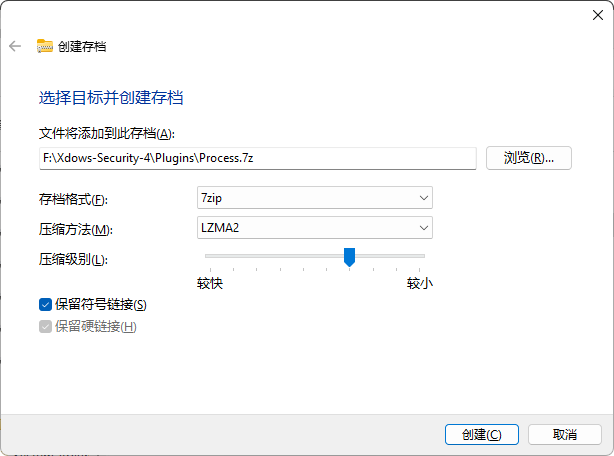
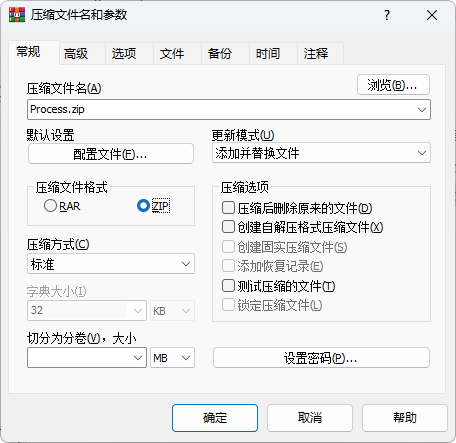
Below are example screenshots for other compression software:
Windows Explorer
WinRAR
Confirm the options and click
OKto start compressing.
Verifying the Compression Result
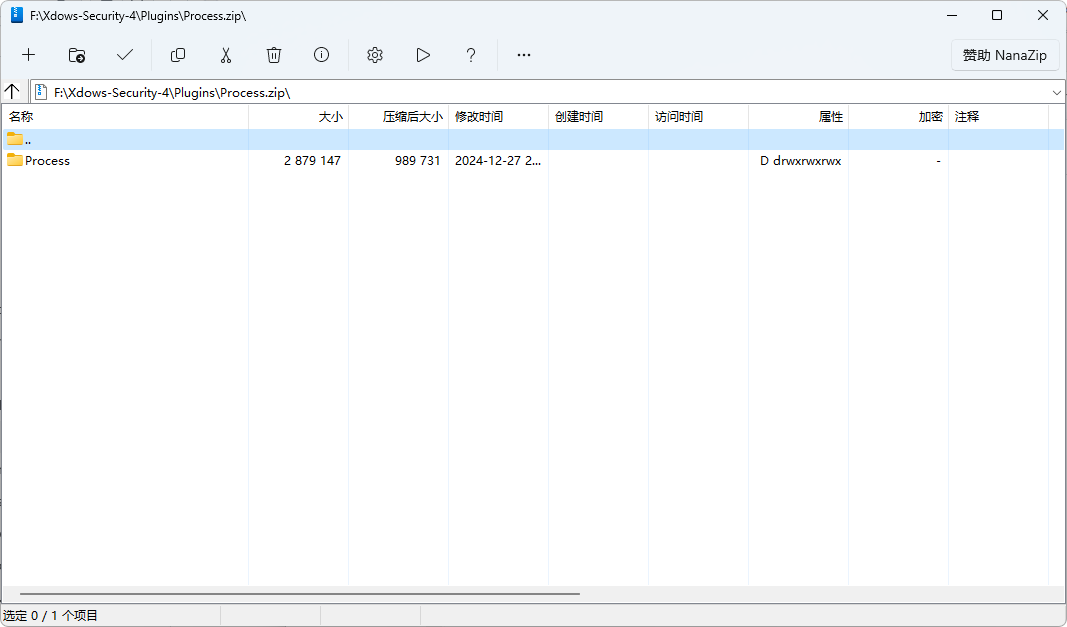
After compression, check if the generated ZIP file has the following directory structure:
Plugin.zip
├── PluginName/
│   ├── Data/
│   │   └── ...
│   └── Files/
│       ├── Main.dll
│       └── ...
You can verify this by extracting the file and checking its contents.
Multi-Plugin Packages
Simply select multiple plugins and compress them together. The result should look like this:
Plugin.zip
├── PluginName1/
│   ├── Data/
│   │   └── ...
│   └── Files/
│       ├── Main.dll
│       └── ...
├── PluginName2/
│   ├── Data/
│   │   └── ...
│   └── Files/
│       ├── Main.dll
│       └── ...
└── ...
Final Example
Below is a screenshot of the compressed package content using the Process plugin as an example:
Common Issues
Incorrect file structure after compression
- Check if the initial plugin directory structure meets the requirements.
- Ensure the correct options were selected during compression.
ZIP file not recognized
- Ensure the ZIP format was used.
Compression level selection
- Level 1 is the recommended compression level, balancing speed and compression ratio.
How to import the plugin package
- Use
Xdows Tools-AddPluginsto import the plugin package.
- Use